fashion S9120 watch phone
The fashion S9120 is a Chinese cell phone with the looks of an
oversized wrist watch. Basic multimedia
functions are incorporated: camera, music player, FM radio.
The S9120 is marked by a convoluted menu structure and
microscopic user interface, which together can make a discourageing
user experience. Moreover, it does not come with a decent English
manual! To get started with this cute miniature phone, I patiently
sorted out function details and documented them on
this page. Notice that this is NOT official documentation by the
manufacturer!
At the page bottom is a list of tips and critical comments. An extensive review with tips
and tricks about the very similar S9110 is written by Dr. Lex, see here.

|
Hardware description:
Quadband GSM (850/900/1800/1900 MHz)
Touch screen (resistive): 29 x 35 mm (1.8 inch), 176 X 220 pix
Stills camera: max 640 x 480 pix (0.3 MP)
Video camera: 176 x 144 pix, 13 FPS
MP3/MP4 player
Bluetooth A2DP
GPRS/WAP
FM radio
Compass
Phone internal memory 819 KB
T-flash card support (4 GB tested OK)
Built-in speaker and mic
Hardware buttons: 3
Battery: 480 mAh
Largest dimensions of metal case: 63 x 40 x 13 mm
Weight with battery and strap included: 84 grams
|
|
S9120 functionality:
single sim quad band GSM phone
SMS, MMS, messenger, E-mail, WAP browser
stills camera up to 640 x 480 pix (white balance, exposure value,
burst, effects, night mode)
video camera 176 x 144 pix, 13 FPS Motion JPEG in AVI container
(exposure value, digital zoom 3x)
MP3 / MP4 player
FM radio
graphic equalizer
games (Mahjong and Puzzle)
compass
currency converter
'E-book reader' (.txt file reader actually)
alarms
calendar / task list
calculator
stopwatch (no timer!)
bluetooth (handsfree, headset)
webcam
handwriting for text and numerical input (works with stylus
and also with fingernail)
|
|
|
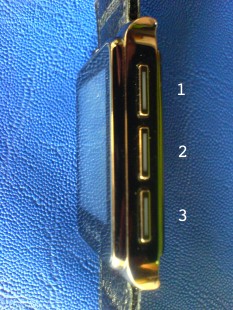
The S9120 has three hardware buttons on the right side. The
function of hardware buttons depends on context.
button 1:
- backlight on
- next menu item
button 2:
- backlight on
- unlock screen
- accept call
- hold call
- enter menu item or option
- play / rec / stop
button 3:
- backlight on
- phone on / off (press several seconds)
- end call
- go to main unlocked screen
|
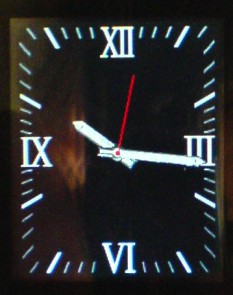
The locked screen of the S9120 shows a clock during a couple of
seconds when one of the
hardware buttons is pressed (it is dark otherwise):
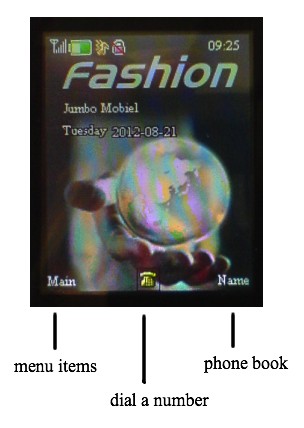
Press the middle hardware button twice and confirm to unlock the
S9120. This is how the default unlocked start screen looks like (the
background image can be replaced):
|
 |
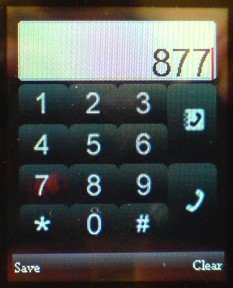
dial a number
|
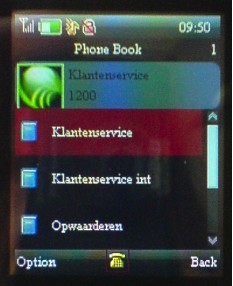
phone book
|
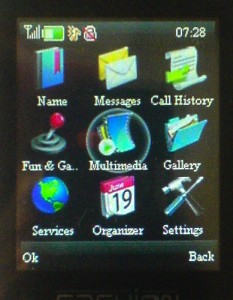
Apart from making phone calls, all functions and settings are
accessed via the main menu:
menu overview
|
1 - Name (Phone Book)
|
1.1 - Name > Names (search contact)
1.2 - Name > Add New (add new contact)
1.3 - Name > Settings (special numbers,
data fields, vCard)
1.4 - Name > Groups (view and edit contact
groups)
1.5 - Name > Del all contacts (delete
contacts from SIM or phone)
1.6 - Name > Copy contacts (copy contacts
from SIM to phone or vice versa)
|
|
2 - Messages
|
2.1 - Messages > SMS (view and create SMS
messages)
2.2 - Messages > E-mail (view and write E-mail
messages)
2.3 - Messages > Delivery reports (delivery
reports and reply path)
2.4 - Messages > IMs (chat)
2.5 - Messages > Voice messages (voice
messages)
2.6 - Messages > Info messages (info
messages)
|
|
3 - Call History
|
3.1 - Call History > Call History (call
history)
3.2 - Call History > Call (call setup, auto redial)
|
|
4 - Fun and Games
|
4.1 - Fun & Games > Games (mahjong,
puzzle)
4.2 - Fun & Games > Extra (compass,
currency converter, E-book reader)
|
|
5 - Multimedia
|
5.1 - Multimedia > Camera (stills
camera)
5.2 - Multimedia > Images (view images)
5.3 - Multimedia > Video Recorder (video
camcorder)
5.4 - Multimedia > Audio Player (play music
files)
5.5 - Multimedia > Video Clips (view video
clips)
5.6 - Multimedia > Radio (FM radio)
5.7 - Multimedia > Recordings (voice
recorder)
5.8 - Multimedia > Equaliser (graphic equalizer)
|
|
6 - Gallery
|
6.1 - Gallery > Phone (Audio, Ebook, Images,
My Music, Photos,
Video)
6.2 - Gallery > Memory Card (Audio, Ebook, mxp, My
Music, Photos,
Received, Video)
|
|
7 - Services
|
7.1 - Services > (your provider)
7.2 - Services > Wap
7.3 - Services > Data Account
|
|
8 - Organizer
|
8.1 - Organizer > Alarm (set alarms)
8.2 - Organizer > Calendar (calendar)
8.3 - Organizer > Notes (task list)
8.4 - Organizer > Calculator (calculator)
8.5 - Organizer > Stopwatch (stopwatches)
8.6 - Organizer > Bluetooth (bluetooth settings)
|
|
9 - Settings
|
9.1 - Settings > User Profiles (General,
Meeting, Outdoor,
Indoor, Headset, Bluetooth)
9.2 - Settings > Phone (date & time,
power schedule, language, keyboard, display, flight mode)
9.3 - Settings > Pen input sett (handwriting,
touch screen calibration)
9.4 - Settings > Lights (display backlight time)
9.5 - Settings > Sync and backup (synchronization)
9.6 - Settings > Connectivity (connectivity)
9.7 - Settings > Enhancements (equalizer
settings)
9.8 - Settings > Configuration (network settings)
9.9 - Settings > Security (passwords)
9.10 - Settings > Rest. factory Sett. (reset)
|
Name (phone book) menus
|
search contact by name
1.1.1 - Name > Names (Option) > Search
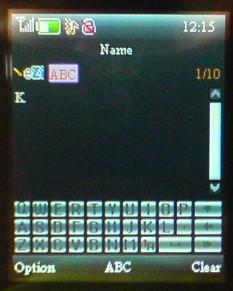
From menu 'Name > Names' you can find a contact in the
phone book. Enter (part of the) name, and select 'Options > Search'.
1.1.2 - Name > Names (Option) > Input Method
You can change the keyboard input method by clicking 'ABC'
indicator or by selecting 'Options > Input Method'. Selectable input
methods are the same as in the Settings menu, see description further
down:
9.2.4 - Settings > Phone > Preferred Input Methods
|
|
|
The onscreen qwerty keyboard is in fact too small
and not readable. You can use handwriting instead, which works well but
not so fast. If you need to
set pen speed and color, use the following menus:
9.3.1.1 - Settings > Pen input settings > Handwriting
> Pen Speed
9.3.1.2 - Settings > Pen input settings > Handwriting > Pen
Color
|
 |
|
add new contact
1.2.1.1 - Name > Add New > To Sim > Name
1.2.1.2 - Name > Add New > To Sim > Number
1.2.2.1 - Name > Add New > To Phone > Name
1.2.2.2 - Name > Add New > To Phone > Number
Menus for adding new phone numbers. The onscreen qwerty and numeric
keyboards are too small and not readable, but you can use handwriting
instead. If you need to set pen speed and color, use the following
menus:
9.3.1.1 - Settings > Pen input settings > Handwriting
> Pen Speed
9.3.1.2 - Settings > Pen input settings > Handwriting > Pen
Color
|
 |
|
special phone numbers
1.3.1.1 - Name > Settings > Extra Number > Owner
Number
1.3.1.2 - Name > Settings > Extra Number > Service Dial Number
1.3.1.3 - Name > Settings > Extra Number > SOS Number
|
|
|
caller-specific ring tone
1.3.2 - Name > Settings > Caller Ring Tone
Select a ringtone and allocate it to a specific caller or
caller group.
|
|
|
contacts storage
Check number of available and used memory locations in SIM and
phone memory:
1.3.3 - Name > Settings > Memory Status
Set default storage location for contacts:
1.3.4 - Name > Settings > Preferred Storage (SIM / Phone
Memory)
|
|
|
contacts data fields
1.3.5 - Name > Settings > Fields
Enable / disable database fields:
Home Number
Company Name
Email Address
Office Number
Fax Number
Birthday
Associate Sound
Caller Group
Remark: fields are only available for contacts stored in phone
memory, not for contacts stored on SIM.
|
|
|
create and send vCard
Edit vCard text fields:
1.3.6.1 - Name > Settings > My vCard > Edit My Card
> Name
1.3.6.2 - Name > Settings > My vCard > Edit My Card > Number
1.3.6.3 - Name > Settings > My vCard > Edit My Card > Home
Number
1.3.6.4 - Name > Settings > My vCard > Edit My Card >
Company Name
1.3.6.5 - Name > Settings > My vCard > Edit My Card > Email
Address
1.3.6.6 - Name > Settings > My vCard > Edit My Card >
Office Number
1.3.6.7 - Name > Settings > My vCard > Edit My Card > Fax
Number
Send vCard to phone number or phone book entry:
1.3.7 - Name > Settings > My vCard > Send My Card
Set vCard version:
1.3.8 - Name > Settings > vCard Version (2.1 / 3.0)
|
|
|
view and edit contact groups
1.4.1 - Name > Groups > Friends
1.4.2 - Name > Groups > Family
1.4.3 - Name > Groups > VIP
1.4.4 - Name > Groups > Business
1.4.5 - Name > Groups > Others
All group menus have the following options:
Edit group name
Select ringtone for group
Member List (Add)
Remark: only contacts from phone memory (not from SIM) can be
added to groups.
|
|
|
delete contacts
1.5.1 - Name > Del all contacts > From SIM
1.5.2 - Name > Del all contacts > From Phone
1.5.3 - Name > Del all contacts > One By One
|
|
|
copy contacts
1.6.1 - Name > Copy Contacts > From SIM
1.6.2 - Name > Copy Contacts > From Phone
|
|
Message menus
|
view SMS messages
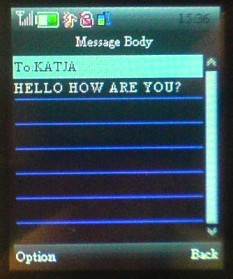
2.1.1 - Messages > SMS > Inbox
2.1.2 - Messages > SMS > Outbox
View sent and received SMS messages. The following options
exist:
Send
Edit
Delete
Copy to Phone
Move to Phone
Copy All
Move All
Use Number
Use URL
|
|
|
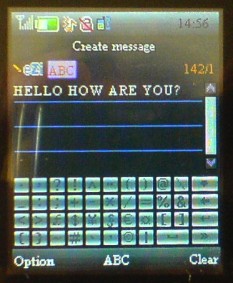
create SMS message
2.1.3 - Messages > SMS > Create Message
Window to write an SMS message. Send options:
2.1.3.1.1 - Messages > SMS > Create Message >
(Option) Done > Send Only
2.1.3.1.2 - Messages > SMS > Create Message > (Option) Done
> Save and Send
2.1.3.1.3 - Messages > SMS > Create Message > (Option) Done
> Save
2.1.3.1.4 - Messages > SMS > Create Message > (Option) Done
> Send To Many
2.1.3.1.5 - Messages > SMS > Create Message > (Option) Done
> Send By Group
Other options:
2.1.3.2 - Messages > SMS > Create Message > (Option)
Use Template
2.1.3.3 - Messages > SMS > Create Message > (Option) Insert
Object
2.1.3.4 - Messages > SMS > Create Message > (Option) Format
Text
2.1.3.5 - Messages > SMS > Create Message > (Option) Insert
PHB (Phone Book) Number
2.1.3.6 - Messages > SMS > Create Message > (Option) Insert
PHB (Phone Book) Name
2.1.3.7 - Messages > SMS > Create Message > (Option) Insert
Bookmark
2.1.3.8 - Messages > SMS > Create Message > (Option) Input
Method
|
|
|
The onscreen keyboard is too small to read, but you can use
handwriting instead. If you need to set pen speed and color, use the
following menus:
Settings > Pen input settings > Handwriting > Pen
Speed
Settings > Pen input settings > Handwriting > Pen
Color
|

|
|
delete SMS messages
2.1.4 - Messages > SMS > Delete Messages
|
|
|
SMS templates
2.1.5 - Messages > SMS > Saved Items (select
one of 10 template messages)
|
|
|
SMS settings
2.1.6.1 - Messages > SMS > Message Settings > Profile
Setting (select / edit one of two SMS profiles)
2.1.6.2 - Messages > SMS > Message Settings > Memory Status
(check SMS memory status for SIM and phone)
2.1.6.3 - Messages > SMS > Message Settings > Preferred
Storage (default SMS storage location: SIM or phone)
|
|
|
E-mail
2.2.1 - Messages > E-mail > Write Message
2.2.2 - Messages > E-mail > Inbox
2.2.3 - Messages > E-mail > Outbox
2.2.4 - Messages > E-mail > Draft
2.2.5 - Messages > E-mail > Template
2.2.6 - Messages > E-mail > Message Settings
|
|
|
delivery report and reply path
2.3.1 - Messages > Delivery Reports > Delivery Report
2.3.2 - Messages > Delivery Reports > Reply Path
|
|
|
chat
2.4.1 - Messages > IMs > Chat Room1
2.4.2 - Messages > IMs > Chat Room2
|
|
|
voice messages
2.5.1 - Messages > Voice messages > (Option) > Edit
(Name / Number)
2.5.1 - Messages > Voice messages > (Option) > Connect to Voice
|
|
|
info messages
2.6.1 - Messages > Info Messages > Receive Mode
2.6.2 - Messages > Info Messages > Read Message
2.6.3 - Messages > Info Messages > Languages
2.6.4 - Messages > Info Messages > Channel Setting
|
|
Call History menus
|
call history
3.1.1 - Call History > Call History > All Calls
3.1.2 - Call History > Call History > Missed Calls
3.1.3 - Call History > Call History > Received Calls
3.1.4 - Call History > Call History > Dialled Numbers
3.1.5 - Call History > Call History > Clear Call Lists
3.1.6 - Call History > Call History > Call Duration
3.1.7 - Call History > Call History > Data Counter
3.1.8 - Call History > Call History > Message log
3.1.9 - Call History > Call History > Sync log
|
|
|
call
3.2.1 - Call History > Call > Call Setup
3.2.2 - Call History > Call > Auto Redial
3.2.3 - Call History > Call > IP Number
3.2.4 - Call History > Call > More...
|
|
Fun & Games menus
|
games
4.1.1.1 - Fun & Games > Games > Mahjong > Resume
4.1.1.2 - Fun & Games > Games > Mahjong > Start Game
4.1.1.3 - Fun & Games > Games > Mahjong > Game Level
(Easy, Normal, Hard)
4.1.1.4 - Fun & Games > Games > Mahjong > Best Grades
4.1.1.5 - Fun & Games > Games > Mahjong > Game Help
4.1.2.1 - Fun & Games > Games > Puzzle > Resume
4.1.2.2 - Fun & Games > Games > Puzzle > Start Game
4.1.2.3 - Fun & Games > Games > Puzzle > Game Level (Easy,
Normal, Hard)
4.1.2.4 - Fun & Games > Games > Puzzle > Best Grades
4.1.2.5 - Fun & Games > Games > Puzzle > Game Help
4.1.3.1 - Fun & Games > Games > Game Setting > BGM (On /
Off)
4.1.3.1 - Fun & Games > Games > Game Setting > Sound
Effect (On / Off)
4.1.3.1 - Fun & Games > Games > Game Setting > Game
Vibration (On / Off)
|

puzzle (level easy)
|
|
extra utilities
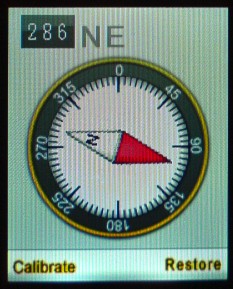
4.2.1 - Fun & Games > Extra > Compass
4.2.2 - Fun & Games > Extra > Currency Converter
4.2.3 - Fun & Games > Extra > E-book Reader
'E-book Reader' can also be accessed from menu 'Gallery', see description.
|
compass
|
Multimedia menus
|
camera (stills)
5.1 - Multimedia > Camera
Options:
5.1.1.1 - Multimedia > Camera (option) > Camera Settings
> Shutter Sound
5.1.1.2 - Multimedia > Camera (option) > Camera Settings > EV
(-4 till +4)
5.1.1.3 - Multimedia > Camera (option) > Camera Settings >
Banding (50 Hz / 60 Hz)
5.1.1.4 - Multimedia > Camera (option) > Camera Settings >
Delay timer (5 sec / 10 sec / 15 sec / off)
5.1.1.5 - Multimedia > Camera (option) > Camera Settings >
Cont Shot (3 shot / 5 shot / off)
5.1.2.1 - Multimedia > Camera (option) > Image Settings
> Image Size (176 x 220 / 80 x 60 / 160 x 120 / 320 x 240 / 640 x
480)
5.1.2.2 - Multimedia > Camera (option) > Image Settings >
Image Quality (Low / Normal / High)
5.1.2.3 - Multimedia > Camera (option) > Image Settings >
White Balance (Auto / Daylight / Tungsten / Fluorescent / Cloud /
Incandescence)
5.1.2.4 - Multimedia > Camera (option) > Image Settings >
Scene Mode (Auto / Night)
5.1.3 - Multimedia > Camera (option) > Image Settings
> Effect Settings (Normal / Grayscale / Sepia / Sepia Green / Sepia
Blue / Color Invert)
5.1.4 - Multimedia > Camera (option) > Image Settings
> Add Frame (on / off, wallpaper frame)
5.1.5 - Multimedia > Camera (option) > Image Settings
> Storage (Phone / Memory Card)
5.1.6 - Multimedia > Camera (option) > Image Settings
> Restore Defaults
More comments on the stills camera can be found at the page bottom.
|


176 x 220 pix images from S9120
|
|
view images
5.2 - Multimedia > Images
Options:
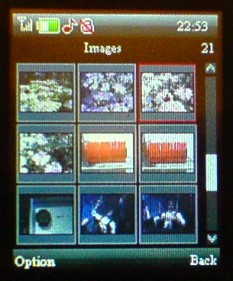
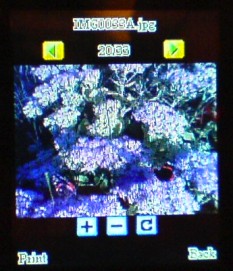
5.2.1 - Multimedia > Images > (Option) View
5.2.2 - Multimedia > Images > (Option) Browse Style (List Style /
Matrix Style)
5.2.3 - Multimedia > Images > (Option) Forward (To Wallpaper / To
Power On Display / To Power Off Display / To MMS / To Bluetooth)
5.2.4 - Multimedia > Images > (Option) Rename
5.2.5 - Multimedia > Images > (Option) Delete
5.2.6 - Multimedia > Images > (Option) Delete All Files
5.2.7 - Multimedia > Images > (Option) Sort
5.2.8 - Multimedia > Images > (Option) Storage (Phone / Memory
Card)
|
matrix style browser with thumbnails
zoom buttons
full screen button
|
|
video recorder
5.3 - Multimedia > Video Recorder
Options:
5.3.1.1 - Multimedia > Video Recorder > (Option)
Camcorder
Setting > White Balance (Auto / Daylight / Tungsten / Fluorescent /
Cloud / Incandescence)
5.3.1.2 - Multimedia > Video Recorder > (Option) Camcorder
Setting > EV
(-4 till +4)
5.3.1.3 - Multimedia > Video Recorder > (Option) Camcorder
Setting >
Night Mode (on / off)
5.3.1.4 - Multimedia > Video Recorder > (Option) Camcorder
Setting >
Banding ( 50 Hz / 60 Hz)
5.3.2 - Multimedia > Video Recorder > (Option) Video
Setting >
Video Quality (Low / Normal / High)
5.3.3 - Multimedia > Video Recorder > (Option) Effect
Setting
(Normal / Grayscale / Sepia / Sepia Green / Sepia Blue / Color Invert)
5.3.4 - Multimedia > Video Recorder > (Option) Storage
(Phone /
Memory Card)
5.3.5 - Multimedia > Video Recorder > (Option) Restore
Default
Remark: the video recorder may stop early when memory is too
slow.
|
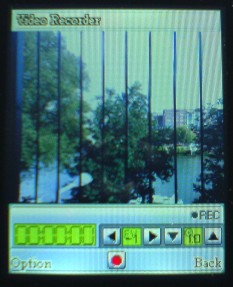
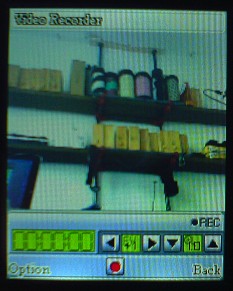
exposure value buttons (-4 till +4)
digital zoom buttons (up till 3x)
|
|
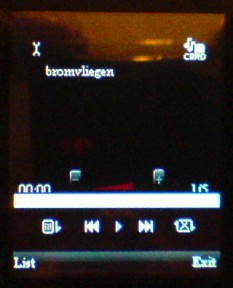
audio player
5.4 - Multimedia > Audio Player
You can play MP3 files which are preferably stored on T-flash
memory card (phone internal memory is minimal). Dump MP3 files in
directory 'My Music'. In Audio Player, click 'List' to select an audio
file for playback. From each title, the following options can be
accessed or viewed:
5.4.1 - Multimedia > Audio Player > (List) Play
5.4.2 - Multimedia > Audio Player > (List) Detail (title /
channels / bitrate and frequency / filesize / duration)
5.4.3 - Multimedia > Audio Player > (List) Add To Rings
5.4.4 - Multimedia > Audio Player > (List) Refresh List
5.4.5.1 - Multimedia > Audio Player > (List)
Settings > Preferred Play List (Phone / Memory Card)
5.4.5.2 - Multimedia > Audio Player > (List) Settings >
List Auto Gen (On / Off)
5.4.5.3 - Multimedia > Audio Player > (List) Settings >
Repeat (On / Off)
5.4.5.4 - Multimedia > Audio Player > (List) Settings >
Shuffle (On / Off)
5.4.5.5 - Multimedia > Audio Player > (List) Settings >
Background Play (On / Off)
5.4.5.6 - Multimedia > Audio Player > (List) Settings >
Bluetooth Stereo Output (On / Off)
5.4.5.7 - Multimedia > Audio Player > (List) Settings >
Bluetooth Stereo Headset (On / Off)
5.4.5.6 - Multimedia > Audio Player > (List) Settings >
Equalizer (Normal / Bass / Dance / Classical / Treble / Party / Pop /
Rock / Off)
Upper hardware button: select next file
Middle hardware button: play / stop
Bottom hardware button: exit
Remark: if Background Play is on, music can play while you
exit the player and perform other tasks.
Remark 2: the volume plus and minus buttons are extremely
difficult to operate.
|
|
|
video clip player
5.5 - Multimedia > Video Clips
The video player window has the following buttons:
shuttle
snapshot
play full screen (horizontally)
playback speed
audio volume
option (Video Settings > Auto Repeat On / Off)
play
stop
Options:
5.5.1 - Multimedia > Video Clips > (Option) Play
5.5.2 - Multimedia > Video Clips > (Option) Forward (To MMS / To
Bluetooth)
5.5.3 - Multimedia > Video Clips > (Option) Rename
5.5.4 - Multimedia > Video Clips > (Option) Delete
5.5.5 - Multimedia > Video Clips > (Option) Delete All Files
5.5.6 - Multimedia > Video Clips > (Option) Sort
5.5.7 - Multimedia > Video Clips > (Option) Storage (play from
Phone or from Memory Card)
|

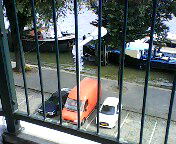
snapshot 176 x 144 pix
|
|
radio
5.6 - Multimedia > Radio
Options:
5.6.1 - Multimedia > Radio > (Option) Channel List (9
channels, Channel Name and Frequency)
5.6.2 - Multimedia > Radio > (Option) Manual Input (frequency MHz)
5.6.3 - Multimedia > Radio > (Option) Preset Auto Search
5.6.4 - Multimedia > Radio > (Option) Settings (Background Play
On / Off, Loud Speaker On / Off)
Remark: the radio in my unit does not work.
|

|
|
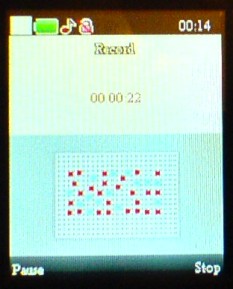
voice recording
5.7 - Multimedia > Recordings
Options:
5.7.1 - Multimedia > Recordings > (Option) Record
5.7.2 - Multimedia > Recordings > (Option) Play
5.7.3 - Multimedia > Recordings > (Option) Append
5.7.4 - Multimedia > Recordings > (Option) Rename
5.7.5 - Multimedia > Recordings > (Option) Delete
5.7.6 - Multimedia > Recordings > (Option) Delete All
5.7.7.1 - Multimedia > Recordings > (Option) Settings
> Pref. Storage (Phone / Memory Card)
5.7.7.2 - Multimedia > Recordings > (Option) Settings >
File Format ( AMR / WAV / AWB)
5.7.7.3 - Multimedia > Recordings > (Option) Settings > Audio
Quality (Low / High)
Remark: voice recordings tend to be very low in volume.
|
|
|
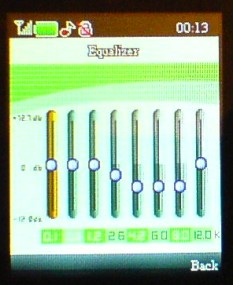
equalizer
Select equalizer type:
5.8.1 - Settings > Enhancements > Equaliser (Normal /
Bass / Dance / Classical / Treble / Party / Pop / Rock / Off)
Options:
5.8.1.1 - Settings > Enhancements > Equaliser (Option)
> Select (click to select)
5.8.1.2 - Settings > Enhancements > Equaliser (Option) > Edit
(set graphic equalizer sliders)
5.8.1.3 - Settings > Enhancements > Equaliser (Option) >
Rename Setting (enter new name)
5.8.1.4 - Settings > Enhancements > Equaliser (Option) >
Restore Factory Default (click to effectuate)
|
|
Gallery menus
|
audio gallery
6.1.1 - Gallery > Phone > Audio
6.2.1 - Gallery > Memory Card > Audio
Voice recordings are stored in one of these places (depending
on recording storage setting). Options:
6.1.1.1.1 - Gallery > Phone > Audio > Open (option)
> Play
6.1.1.1.2 - Gallery > Phone > Audio > Open (option) >
Forward
6.1.1.1.3 - Gallery > Phone > Audio > Open (option) >
Detail (Date and Size)
6.1.1.1.4 - Gallery > Phone > Audio > Open (option) > Rename
6.1.1.1.5 - Gallery > Phone > Audio > Open (option) > Copy
6.1.1.1.6 - Gallery > Phone > Audio > Open (option) > Move
6.1.1.1.7 - Gallery > Phone > Audio > Open (option) > Delete
6.1.1.1.8 - Gallery > Phone > Audio > Open (option) >
Delete All Files
6.1.1.2 - Gallery > Phone > Audio > Create Folder
6.1.1.3 - Gallery > Phone > Audio > Rename
6.1.1.4 - Gallery > Phone > Audio > Delete
6.1.1.5 - Gallery > Phone > Audio > Sort
For Memory Card gallery items the menus are equivalent:
6.2.1.1.1 - Gallery > Memory Card > Audio > Open
(option) > Play
6.2.1.1.2 - Gallery > Memory Card > Audio > Open (option) >
Forward
6.2.1.1.3 - Gallery > Memory Card > Audio > Open (option) >
Detail (Date and Size)
6.2.1.1.4 - Gallery > Memory Card > Audio > Open (option) >
Rename
6.2.1.1.5 - Gallery > Memory Card > Audio > Open (option) >
Copy
6.2.1.1.6 - Gallery > Memory Card > Audio > Open (option) >
Move
6.2.1.1.7 - Gallery > Memory Card > Audio > Open (option) >
Delete
6.2.1.1.8 - Gallery > Memory Card > Audio > Open (option) >
Delete All Files
6.2.1.2 - Gallery > Memory Card > Audio > Create
Folder
6.2.1.3 - Gallery > Memory Card > Audio > Rename
6.2.1.4 - Gallery > Memory Card > Audio > Delete
6.2.1.5 - Gallery > Memory Card > Audio > Sort
|
|
|
E-book gallery
6.1.2 - Gallery > Phone > Ebook
6.2.2 - Gallery > Memory Card > Ebook
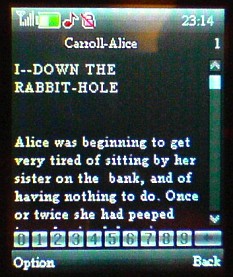
Select an 'E-book' for display. Notice that this is not an
E-book in the regular sense, like a PDF file or Java E-book. The S9120
phone can only display a plain .txt file. Options:
6.1.2.1.1 - Gallery > Phone > Ebook > (Option) Read
> (Option) > Find
6.1.2.1.2 - Gallery > Phone > Ebook > (Option) Read >
(Option) > Jump To
6.1.2.1.3 - Gallery > Phone > Ebook > (Option) Read >
(Option) > Go To Bookmark
6.1.2.1.4 - Gallery > Phone > Ebook > (Option) Read >
(Option) > Add Bookmark
6.1.2.1.5 - Gallery > Phone > Ebook > (Option) Read >
(Option) > Delete Bookmark
6.1.2.1.6 - Gallery > Phone > Ebook > (Option) Read >
(Option) > Book Info
6.1.2.1.7.1 - Gallery > Phone > Ebook > (Option) Read
> (Option) > Settings > Font Style (Italic / Normal / Bold)
6.1.2.1.7.2 - Gallery > Phone > Ebook > (Option) Read >
(Option) > Settings > Font Size (Small / Medium / Large)
6.1.2.1.7.3 - Gallery > Phone > Ebook > (Option) Read >
(Option) > Settings > Scroll By (Line / Page)
6.1.2.1.7.4 - Gallery > Phone > Ebook > (Option) Read >
(Option) > Settings > Auto Scroll (On / Off)
6.1.2.1.7.5 - Gallery > Phone > Ebook > (Option) Read >
(Option) > Settings > Scroll Speed (1 - 4)
6.1.2.1.7.6 - Gallery > Phone > Ebook > (Option) Read >
(Option) > Settings > Full Screen (On / Off)
6.1.2.1.7.7 - Gallery > Phone > Ebook > (Option) Read >
(Option) > Settings > Encoding (ASCII Western Windows / UCS2
Unicode / UTF8)
6.1.2.1.8 - Gallery > Phone > Ebook > (Option) Read
> (Option) > Settings > Apply Global Settings
6.1.2.1.9 - Gallery > Phone > Ebook > (Option) Read >
(Option) > Settings > Print
6.1.2.1.10 - Gallery > Phone > Ebook > (Option) Read >
(Option) > Settings > Help
6.1.2.1.11 - Gallery > Phone > Ebook > (Option) Read >
(Option) > Settings > Close
6.1.2.2 - Gallery > Phone > Ebook > (Option) Forward
6.1.2.3 - Gallery > Phone > Ebook > (Option) Detail (Date and
Size)
6.1.2.4 - Gallery > Phone > Ebook > (Option) Rename
6.1.2.5 - Gallery > Phone > Ebook > (Option) Copy
6.1.2.6 - Gallery > Phone > Ebook > (Option) Move
6.1.2.7 - Gallery > Phone > Ebook > (Option) Delete
6.1.2.8 - Gallery > Phone > Ebook > (Option) Delete All Files
6.1.2.9 - Gallery > Phone > Ebook > (Option) Sort
For Memory Card gallery items the menus are equivalent.
Shortcurt keys under the Ebook text have the following functions:
0 - Go to Book Settings
1 - Help
2 - Add a bookmark
3 - Go to Find Screen
4 - Go to Jump to Screen
5 - Go to Bookmark
6 - Find Next
7 - Toggle Autoscroll
8 - Remove Bookmark
9 - Toggle Full Screen Mode
|
|
|
image gallery
6.1.3.1 - Gallery > Phone > Images > View
6.1.3.2.1 - Gallery > Phone > Images (option) >
Forward > To Wallpaper
6.1.3.2.2 - Gallery > Phone > Images (option) > Forward >
To Power On Display
6.1.3.2.3 - Gallery > Phone > Images (option) > Forward >
To Power Off Display
6.1.3.2.4 - Gallery > Phone > Images (option) > Forward >
To MMS
6.1.3.2.5 - Gallery > Phone > Images (option) > Forward >
To Bluetooth
6.1.3.3.1 - Gallery > Phone > Images (option) > Print > To
PictBridge
6.1.3.3.2 - Gallery > Phone > Images (option) > Print > To
Bluetooth
6.1.3.4 - Gallery > Phone > Images (option) > Detail
(view date and size)
6.1.3.5 - Gallery > Phone > Images (option) > Rename
6.1.3.6 - Gallery > Phone > Images (option) > Copy
6.1.3.7 - Gallery > Phone > Images (option) > Move
6.1.3.8 - Gallery > Phone > Images (option) > Delete
6.1.3.9 - Gallery > Phone > Images (option) > Delete All Files
6.1.3.10 - Gallery > Phone > Images (option) > Sort
Remark 1: phone memory is very small (819 KB), better not use
it for images except wallpapers.
Remark 2: image gallery does not provide
a thumbnail overview, and images can not be viewed full screen or
zoomed. Use 'Multimedia > Images'
instead, if you want these
features.
|
|
|
my music gallery
6.1.4 - Gallery > Phone > My Music
6.2.4 - Gallery > Memory Card > My Music
From these menus it is possible to access audio files. Options
for selected files:
6.1.4.1 - Gallery > Phone > My Music > Play
6.1.4.2.1 - Gallery > Phone > My Music > (Option) To
User Profile
6.1.4.2.2 - Gallery > Phone > My Music > (Option) To MMS
6.1.4.2.3 - Gallery > Phone > My Music > (Option) To Bluetooth
6.1.4.3 - Gallery > Phone > My Music > (Option)
Detail (Date and Size)
6.1.4.4 - Gallery > Phone > My Music > (Option) Rename
6.1.4.5 - Gallery > Phone > My Music > (Option) Copy
6.1.4.6 - Gallery > Phone> My Music > (Option) Delete
6.1.4.7 - Gallery > Phone > My Music > (Option) Delete All
Files
6.1.4.8 - Gallery > Phone > My Music > (Option) Sort
Options for Memory Card are equivalent:
6.2.4.2 - Gallery > Memory Card > My Music > Play
6.2.4.2.1 - Gallery > Memory Card > My Music >
(Option) To User Profile
6.2.4.2.2 - Gallery > Memory Card > My Music > (Option) To MMS
6.2.4.2.3 - Gallery > Memory Card > My Music > (Option) To
Bluetooth
6.2.4.3 - Gallery > Memory Card > My Music > (Option)
Detail (Date and Size)
6.2.4.4 - Gallery > Memory Card > My Music > (Option) Rename
6.2.4.5 - Gallery > Memory Card > My Music > (Option) Copy
6.2.4.6 - Gallery > Memory Card > My Music > (Option) Delete
6.2.4.7 - Gallery > Memory Card > My Music > (Option) Delete
All Files
6.2.4.8 - Gallery > Memory Card > My Music > (Option) Sort
|

|
|
photos gallery
6.1.5.1 - Gallery > Memory Card > Photos > (Option)
View
6.1.5.2.1 - Gallery > Memory Card > Photos (Option) >
Forward > To Wallpaper
6.1.5.2.2 - Gallery > Memory Card > Photos (Option) > Forward
>
To Power On Display
6.1.5.2.3 - Gallery > Memory Card > Photos (Option) > Forward
>
To Power Off Display
6.1.5.2.4 - Gallery > Memory Card > Photos (Option) > Forward
>
To MMS
6.1.5.2.5 - Gallery > Memory Card > Photos (Option) > Forward
>
To Bluetooth
6.1.5.3.1 - Gallery > Memory Card > Photos (Option) > Print
> To
PictBridge
6.1.5.3.2 - Gallery > Memory Card > Photos (Option) > Print
> To
Bluetooth
6.1.5.4 - Gallery > Memory Card > Photos (Option) >
Detail
(view
date and size)
6.1.5.5 - Gallery > Memory Card > Photos (Option) > Rename
6.1.5.6 - Gallery > Memory Card > Photos (Option) > Copy
6.1.5.7 - Gallery > Memory Card > Photos (Option) > Move
6.1.5.8 - Gallery > Memory Card > Photos (Option) > Delete
6.1.5.9 - Gallery > Memory Card > Photos (Option) > Delete All
Files
6.1.5.10 - Gallery > Memory Card > Photos (Option) > Sort
Remark: image gallery does not provide
a thumbnail overview, and images can not be viewed full screen or
zoomed. Use 'Multimedia >
Images' instead, if you want these
features.
|
 |
|
video gallery
6.1.6 - Gallery > Phone > Video
6.2.7 - Gallery > Memory Card > Video
Same as '5.5 Multimedia > Video Clips'.
|
|
|
animations gallery
6.1.7 - Gallery > Phone > pwranimation.dat
|
|
|
received items gallery
6.2.6 - Gallery > Memory Card > Received
|
|
Services menus
|
services
7.1.1 - Services > <your provider>
7.2.1 - Services > WAP > Homepage
7.2.2 - Services > WAP > Bookmarks
7.2.3 - Services > WAP > Recent Pages
7.2.4 - Services > WAP > Offline Pages
7.2.5 - Services > WAP > Enter Address
7.2.6 - Services > WAP > Service Inbox
7.2.7 - Services > WAP > Settings
7.3.1 - Services > Data account > GSM Data
7.3.2 - Services > Data account > GPRS
|
|
Organizer menus
|
alarm
Up till 5 repeating or non-repeating alarms can be set. For
each alarm, individual settings can be made, like shown here for alarm
1:
8.1.1.1 - Organizer > Alarm > (alarm 1) > (edit) On /
Off
8.1.1.2 - Organizer > Alarm > (alarm 1) > (edit) Time
8.1.1.3 - Organizer > Alarm > (alarm 1) > (edit) Repeat (Once,
Everyday, Selected Days)
8.1.1.4 - Organizer > Alarm > (alarm 1) > (edit) Audio Options
(select a Tone or Ringtone)
8.1.1.5 - Organizer > Alarm > (alarm 1) > (edit) Snooze
(Default, 1 - 10 min)
8.1.1.6 - Organizer > Alarm > (alarm 1) > (edit) Alert Type
(Ring, Vibration Only, Vibra and Ring)
|

|
|
calendar
8.2.1 - Organizer > Calendar (option) > View Tasks
8.2.2 - Organizer > Calendar (option) > Add Task
8.2.3 - Organizer > Calendar (option) > Jump to date
8.2.4 - Organizer > Calendar (option) > Go to weekly view
8.2.5 - Organizer > Calendar (option) > Print
|

month with weeks and days
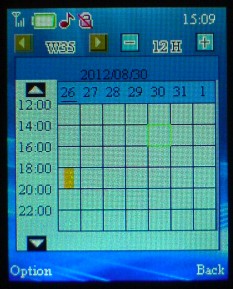
week with days and hours
|
|
notes
Review and add tasks with date, time and alarm settings. Synchronized
with Calendar menu.
8.3.1 - Organizer > Notes > (Option) View
8.3.2 - Organizer > Notes > (Option) Add (Meeting / Course / Date
/ Date / Call / Anniversary)
8.3.3 - Organizer > Notes > (Option) Edit
8.3.4 - Organizer > Notes > (Option) Delete
8.3.5 - Organizer > Notes > (Option) Delete All
8.3.6 - Organizer > Notes > (Option) Send vCalendar
For each added task you can set:
Starts (Date / Time)
Ends (Date / Time)
Note (text)
Alarm (On / Off)
Repeat (Once / Everyday / Selected Days)
Reminder > Location (text)
Priority (Low / Medium / High)
Remark: to add tasks, it is faster to do it from the calender
menu because start and end date are already filled.
|
|
|
calculator
8.4.1 - Organizer > Calculator
|

|
|
stopwatch
8.5.1 - Organizer > Stopwatch > Typical Stopwatch
8.5.1 - Organizer > Stopwatch > nWay Stopwatch
|
|
|
bluetooth
8.6.1 - Organizer > Bluetooth > Power
8.6.2 - Organizer > Bluetooth > Inquiry Audio Device
8.6.3 - Organizer > Bluetooth > Remote Control
8.6.4 - Organizer > Bluetooth > My Device
8.6.5 - Organizer > Bluetooth > Active Device
8.6.6 - Organizer > Bluetooth > Setting
8.6.7 - Organizer > Bluetooth > About
|
|
Settings menus
|
ringtone profiles
Activate general tone profile:
9.1.1.1 - Settings > User Profiles > General >
Activate
To customize general profile:
9.1.1.2.1.1 - Settings > User Profiles > General
>
Customize > Tone Setup > Incoming Call (select a ringtone)
9.1.1.2.1.2 - Settings > User Profiles > General >
Customize > Tone Setup > Power On (select a tone or silence)
9.1.1.2.1.3 - Settings > User Profiles > General >
Customize > Tone Setup > Power Off (select a tone or silence)
9.1.1.2.1.4 - Settings > User Profiles > General >
Customize > Tone Setup > Message Tone (select a tone or silence)
9.1.1.2.1.5 - Settings > User Profiles > General >
Customize > Tone Setup > Keypad Tone (select a tone or silence
for hardware keys)
9.1.1.2.2.1 - Settings > User Profiles > General >
Customize > Volume > Ring Tone (adjust ring tone volume)
9.1.1.2.2.2 - Settings > User Profiles > General >
Customize > Volume > Key Tone (adjust hardware key volume)
9.1.1.2.3 - Settings > User Profiles > General >
Customize
> Alert Type (ring and / or vibration)
9.1.1.2.4 - Settings > User Profiles > General > Customize
> Ring Type (Single / Repeat / Ascending)
9.1.1.2.5 - Settings > User Profiles > General > Customize
> Extra Tone (Warning / Error / Camp on / Connect)
9.1.1.2.6 - Settings > User Profiles > General > Customize
> Answer Mode (disable / enable Any Key)
User profiles Meeting, Outdoor, Indoor, Headset and Bluetooth have
similar submenus as the general profile:
9.1.2 - Settings > User Profiles > Meeting (activate /
customize)
9.1.3 - Settings > User Profiles > Outdoor (activate / customize)
9.1.4 - Settings > User Profiles > Indoor (activate / customize)
9.1.5 - Settings > User Profiles > Headset (activate / customize)
9.1.6 - Settings > User Profiles > Bluetooth (activate /
customize)
|
|
|
date and time
9.2.1.1 - Settings > Phone > Date and time > Set Home
City
9.2.1.2 - Settings > Phone > Date and time > Set Time/Date
(HH:MM, YYYY:MM/DD and Daylight Saving)
9.2.1.3 - Settings > Phone > Date and time > Time Format
(12/24 and date format)
|
|
|
power schedule
9.2.2 - Settings > Phone > Schedule Power on/off
Timer with four settings to switch the S9120 on or off
automatically.
|
|
|
language
9.2.3 - Settings > Phone > Language
English
Français
Español
Portuguẽs
Italiano
Deutsch
Bahasa Indonesia
Türkçe
Russian
Arabic
|
|
|
keyboard input methods
9.2.4 - Settings > Phone > Preferred Input Methods
Selectable options:
ABC, abc
Smart ABC, Smart abc
Multitap ABC, Multitap abc
Numeric
Multitap ES, es, FR, fr, DE, de, IT, it, RU, ru, TR, tr, PR, pt, ID,
id, Arabic
Arabic Numeric
Only ABC, abc, numeric and Arabic numeric work correctly. For
characters there is always a full qwerty, azerty or equivalent
keyboard. Multitap keyboard does not appear on screen, even when
selected.
|
|
|
display
9.2.5.1.1 - Settings > Phone > Display > Themes >
Wallpaper (Image1 / Image2 / Image3 / Theme Image)
9.2.5.1.2 - Settings > Phone > Display > Themes > User
Define (select image from phone or memory card)
9.2.5.2.1 - Settings > Phone > Display > Power On
Display > System (Animation1 / Animation2 / Animation3)
9.2.5.2.2 - Settings > Phone > Display > Power On Display >
User Define (select from phone or memory card)
9.2.5.3.1 - Settings > Phone > Display > Power Off
Display > System (Animation1 / Animation2 / Animation3)
9.2.5.3.2 - Settings > Phone > Display > Power Off Display
> User Define (select from phone or memory card)
9.2.5.4 - Settings > Phone > Display > Show Date and
Time (on / off)
|
|
|
auto update date and time
9.2.6 - Settings > Phone > Auto Update of Date and Time
(on / off)
|
|
|
flight mode
9.2.7 - Settings > Phone > Flight Mode (select Normal
Mode or
Flight Mode)
|
|
|
handwriting
9.3.1.1 - Settings > Pen Input Set > Handwriting >
Pen Speed (Fast / Medium / Slow)
9.3.1.2 - Settings > Pen Input Set > Handwriting > Pen Color
(yellow / pink / orange / blue / black / light blue / red / green)
Remark: the background color for handwriting is always black,
so do not set black pen or you will think that handwriting does not
work.
|
|
|
touch screen calibration
9.3.2 - Settings > Pen Input Set > Pen Calibration
(calibrate touch screen)
|
|
|
display backlight time
9.4 - Settings > Lights (display backlight, 5 till 60
seconds)
|
|
|
sync
9.5 - Settings > Sync and backup
|
|
|
connectivity
9.6 - Settings > Connectivity
|
|
|
equalizer
Enable / disable equalizer:
9.7.1 - Settings > Enhancements > Equaliser (Normal /
Bass / Dance / Classical / Treble / Party / Pop / Rock / Off)
Click 'Options' to make settings:
9.7.1.1 - Settings > Enhancements > Equaliser (options)
> Select (click to select)
9.7.1.2 - Settings > Enhancements > Equaliser (options) > Edit
(set graphic equalizer sliders)
9.7.1.3 - Settings > Enhancements > Equaliser (options) >
Rename Setting (enter new name)
9.7.1.4 - Settings > Enhancements > Equaliser (options) >
Restore Factory Default (click to effectuate)
|
|
|
network configuration
9.8.1.1 - Settings > Configuration > Configuration >
New Search
9.8.1.2 - Settings > Configuration > Configuration > Select
Network
9.8.1.3 - Settings > Configuration > Configuration > Selection
Mode (Automatic / Manual)
9.8.2.1 - Settings > Configuration > Preferred Networks
(option) > Add From List
9.8.2.2 - Settings > Configuration > Preferred Networks (option)
> Create New
9.8.2.3 - Settings > Configuration > Preferred Networks (option)
> Change Priority
9.8.2.4 - Settings > Configuration > Preferred Networks (option)
> Delete
9.8.3.1 - Settings > Configuration > Data Account >
GSM Data
Up till 10 GSM data accounts can be
defined with the following fields:
Account Name
Number
User Name
Password
Line Type
Speed
DNS
9.8.3.1 - Settings > Configuration > Data Account >
GPRS
Up till 10 GPRS accounts can be
defined with the following fields:
Account Name
APN
User Name
Password
Authentication Type
|
|
|
security
9.9.1 - Settings > Security > SIM lock (on / off,
enter PIN)
9.9.2 - Settings > Security > Phone lock (on / off, enter
password) (default is 1122)
9.9.3 - Settings > Security > Auto Keypad Lock (select wait time)
9.9.4 - Settings > Security > Fixed Dial (on / off, edit fixed
dial list)
9.9.5 - Settings > Security > Barred Dial
9.9.6 - Settings > Security > Change Password (PIN, PIN2)
|
|
|
reset settings
(Which settings?)
9.10 - Reset Factory Sett. (enter password)
|
|
tips
|
storage location for pics and video's
Set storage location for photos, video and voice recordings to
a
T-flash card rightaway. Default storage location is phone internal
memory, which is only 819 KB. That's less than a megabyte, next to
nothing! Menus:
5.1.5 - Multimedia > Camera (option) > Image Settings
> Storage (Phone / Memory Card)
5.3.4 - Multimedia > Video Recorder > (Option) Storage
(Phone /
Memory Card)
5.7.7.1 - Multimedia > Recordings > (Option) Settings
> Pref. Storage (Phone / Memory Card)
|
|
MP3 ringtones
The S9120 comes with over a dozen midi ringtones, but they are
all very annoying. Here is how to use your own MP3 ringtones:
Load your MP3 ringtones into directory
'My Music' in phone memory or T-flash card (whichever you have set as
preferred memory for the audio player).
Then go to menu: 'Multimedia
> Audio Player > List'. Select your file and click 'Option >
Add To Rings'.
Then go to 'Settings > User Profiles > General
>
Customize > Tone Setup > Incoming Call'. You will see your MP3
file in the ringtone list.
Select the file and set as ringtone in the
submenu.
|
|
How to set your background image for the unlocked start
screen?
Load a JPEG image onto directory 'Images' in the phone memory. Then go
to menu 'Settings > Phone > Display > Themes > User Define'
and select 'Phone > Open'. Go to folder 'Images' and select your
image.
|
|
If you want to review your photos in zoom view, use
'Multimedia
> Images'. Also, it has a file browser which can be set to
thumbnails matrix. In 'Gallery > Photos' thumbnails matrix and
zooming are not available.
|
|
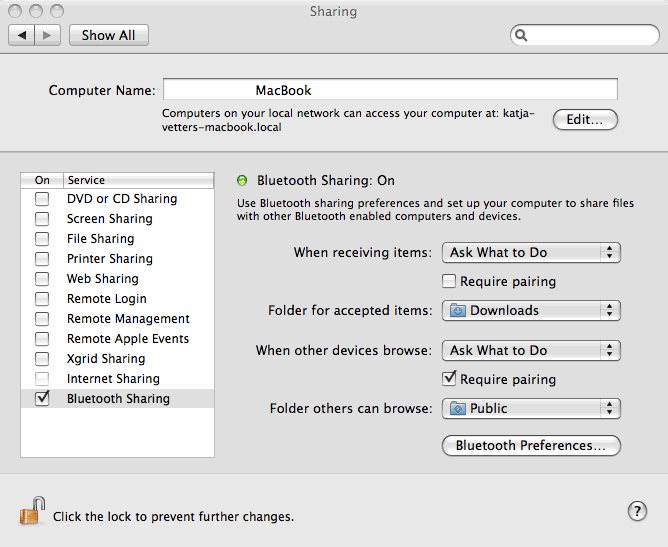
bluetooth filesharing on OSX
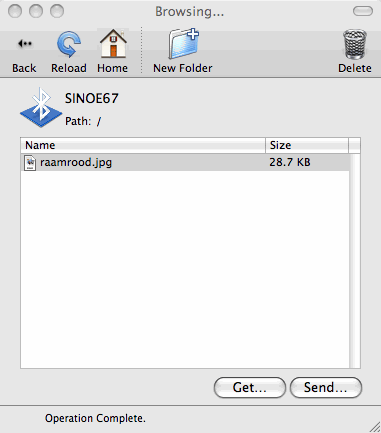
I could not mount the phone memory or T-flash card on my
MacBook over
the USB cable. However the phone can be paired using Bluetooth. File
sharing
over Bluetooth must be explicitly enabled on OSX in System Preferences
> Internet & Network > Sharing (it is disabled by default).
Notice that the default location for files shared over Bluetooth is
'Downloads', and it can be changed.
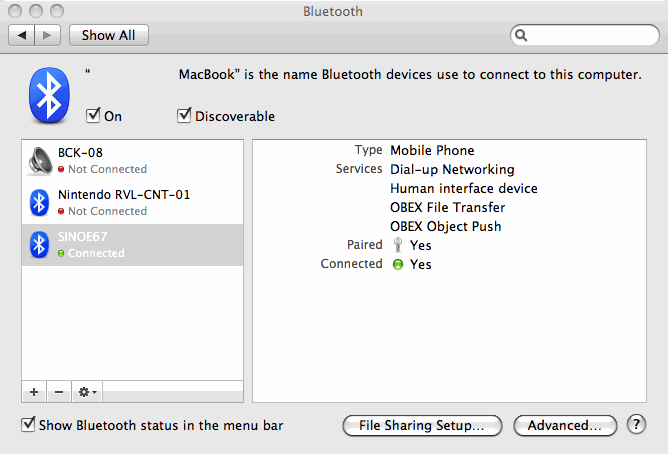
Further, if you click 'Bluetooth Preferences', you get a list
with
Bluetooth devices and their services. The phone is connected as
'SINOE67' in the screenshot below:
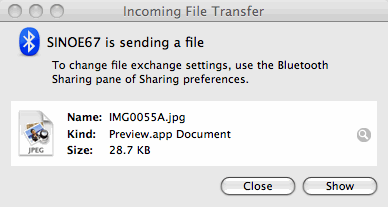
Now I can finally send a phone picture to my MacBook, from the phone's
menu 'Multimedia > Images > (Option) Forward > To Bluetooth'.
The MacBook responds with a message, asking for approval. When the
picture is sent, I get a report like this:
With OSX utility 'Bluetooth File Exchange' it should be
possible to browse the phone memory. It seems that I can only browse
the 'received' folder on the phone's T-flash card. It is also possible
to send files to that folder. To inspect received items, go to 'Gallery
> Memory Card > Received'.
|
camera comments
The stills camera can be set to a maximum image size of 640 x 480
pixels (VGA). I suspect that this size is not the sensor's resolution,
but the result of extrapolation instead. By way of test I took pictures
with different size settings and compared them unedited at scale 1:1
(see below). JPEG artifacts in the VGA picture are larger than pixel
size, as you can see in comparison with the QVGA picture. Look at the
shoe string on the left side for example. It looks like the VGA picture
is a blown up version of the QVGA.
Update: Dr. Lex explained to me
why it looks like this. The sensor resolution is 640 x 480 pixels,
however each pixel can only do one color. Color information must
be interpolated, and sharp color contrasts show that this does not work
so perfectly.
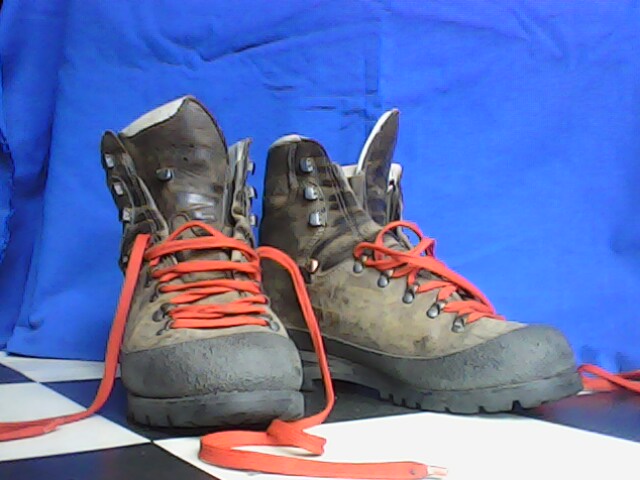
640 x 480 pix (VGA)
|
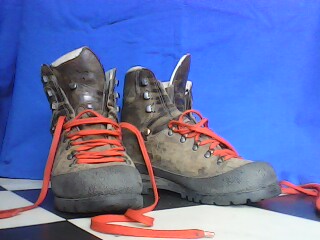
320 x 240 pix (QVGA)
|
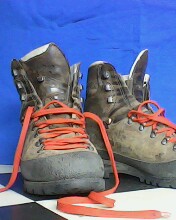
176 x 220 pix
native resolution of S9120 touch screen
|
Daylight pictures at QVGA format can be sharp, bright and realistic, if
you manage to keep the camera still. Automatic white balance works well
mostly. If the colors seem to be wrong, just give it another try after
reopening the camera or after pointing the camera to a white surface.
Artificial light will only give acceptable results in controlled
conditions. The lens is extremely small and shutter times must be long,
so nothing should move when you take the picture. It is not quite
suited to capture 'your favorite moments' (parties, sports events...),
but for inanimate objects it does well. Here is a small gallery of
unedited pictures taken with the S9120:

bright sunlight
|

bright sunlight
|

cloudy
|

cloudy
|

indoor with daylight
|

indoor with daylight
|

indoor with daylight
|

indoor with daylight
|

low artificial light, night mode
|

artificial light, night mode
|
The S9120 video camera produces clips with 176 x 144 pix at 13
frames per
second. The format is Motion JPEG codec
in AVI container. Below you can see a scale 1:1 screenshot from a
video clip. Here again, the colors are all right. But the size is so
small, I
can not think of any use for it. Also, with the low framerate and long
exposure time it suffers from severe jello effect when camera or
subject moves. I will probably forget about having
a video camcorder on my wrist.
screenshot from S9120 video clip, 176 x 144 pix
|
carrying the fashion S9120 around
It is hard to estimate a watch phone's size from pictures, because
you don't know the size of the person who wears it. Moreover, the
picture can be gimped to simulate a different size and look. Below you
can see some amateur pictures from different perspectives which are not
manipulated. It's me (130 pound female) carrying the S9120. Now it's
easy to understand why watch phones are advertised as men's wrist
watches. They are twice as large as the clunkiest regular watches. As
of today (2012), the S9120 is even the thinnest of them all, 13
millimeter. To be honest, I find the watch phone not very fashionable.
It could just as well be a medical analysis instrument, like a blood
pressure meter. Thinking about it this way, I feel no longer so cyber
with this futuristic communications tool.
Even though the S9120 is a huge eye-catcher on the wrist, it is
minuscule compared to old fashioned and modern regular cell phones.
There have been times when cell phones were sized down every year. One
of the smallest was the Ericsson T100 in 2003 with only 74 grams. But
then came the camera cell phone, and sizes started to grow again. Sony
Ericsson introduced the excellent Cybershot
camera with optical zoom. Other innovations where introduced,
ultimately leading
to the powerful Android and iPhone 3G platforms. Reportedly, the Sony
Ericsson Xperia X10 mini was the smallest Android phone, but it was
soon replaced by the larger Xperia mini because the 2.5 inch screen was
considered too small for browsing. If you do not wish to
carry a bulky internet computer in your pocket anno 2012, the
alternative is a no-media cell phone like Samsung still makes them, or
one of the many Chinese watch phones.
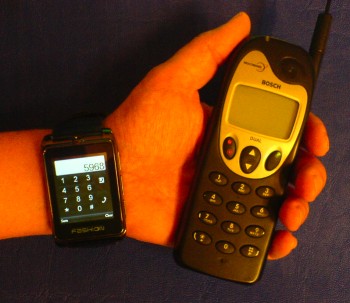
|
Comparison of S9120 with my first cell phone, a Bosch 739,
which I aquired in 1999. The Bosch weighs 189 grams, mainly because of
it's 650 mAh NiMH battery.
|
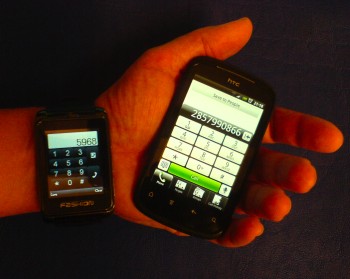
|
Comparison
of S9120 with my friend's htc Explorer. The htc is a 2012 Android
phone, immensely more powerful than the watch phone. You'll have
to stick it's 110 grams somewhere in a not too small pocket.
|
a long list of gripes
Frankly, I have a load of critical comments about the S9120. After
sorting out the menu structure, I'm still not comfortable with it in
daily
life. Here's why:
- Speaker is located at inconvenient position (on the side, left).
Impossible to hear handheld sound with phone on the wrist.
- Mic level is extremely low (built-in mic and headset alike). Only
works well at a distance of 5 cm, wich is not a normal phone position.
- Handsfree through built-in speaker produces unintelligible
distorted sound and echoes.
- Included wired headset sounds low yet distorted.
- Characters are too small. There is a lot of empty space on most
screens, could be used better.
- Touch screen buttons are too small, some even beyond control due
to their microscopic size (audio
player controls in particular).
- On screen qwerty keyboards are totally illegible by lack of
contrast. Multitap keyboard is not available, in spite of menu options.
Handwriting is the best option here, fortunately this is well
recognized.
- Menu structure is convoluted in some places. For example, it
takes at least 10 button
presses to go from the locked screen to a phone number by alphabet. No
quick dial with shortcuts.
- Combined USB / audio connector is non-standard. This should
better be standard mini or micro USB for data and charging, plus 3.5
jack for audio, like most portable media players have it. There's
enough empty space inside the S9120 to accommodate it.
- Display backlight is dim, screen is illegible outdoors on sunny
days.
- Low camera resolution and video framerate. Image details are lost
in agressive JPEG compression.
- Does not have a timer, how do I boil my eggs?
- Phone is much heavier than strictly required, because of clunky
metal parts. The battery cover alone is 12 grams, more than the battery
itself!
- Battery charger produces strong electromagnetic interference.
- Small battery, only 450 mHh which is sufficient for ~2 days
standby plus a few phone calls.
- Phone memory and T-flash can be accessed with Linux but not with
OSX, at least not right out of the box (file systems can't be mounted).
- Phone is priced rather expensive, considering the outdated
hardware specs (over 100 dollar VAT excluded).
flaws which may be specific to my unit or context:
- Stylus in my unit is accidentally glued into wrist strap during
production, thus not useable.
- FM radio in my unit does not work at all, not even a bit of
noise comes out. Not sure if this is a firmware or hardware issue.
- I can connect with my Jabra 320s stereo bluetooth headset, but
the sound is mono no matter if I select 'handsfree' or 'headset'.
The GUI programmer could have done a better job on the S9120, and
the menu
programmer too. But the fatal flaw is in the signal processing,
with extremely low speaker and mic level. You can take the phone off
the wrist and use it in regular handheld position, with the speaker
close to your ear, but you'll have to speak really loud to make
yourself clear. Handsfree through the built-in speaker produces
distorted crackling sound, not intelligible speak, so this is not a
useful option at all. In fact the 'best' way to make phone calls is by
using a bluetooth headset. But
who wants to wear a headset all day long?
I suspect that S9120 developers have set mic level so low
deliberately, after they discovered that echo cancellation procedures
did not work properly on the distorted handsfree sound coming from the
tiny speaker. Distortion is a non-linear process which can not be
eliminated by adaptive filtering. So, reducing mic level was the quick
and dirty attempt to fight the echoes. But that does not work, and
moreover it makes the phone pretty useless in practice! The S9120 is so
far my first and only watch phone, but it may well be the case that
other Chinese watch phones suffer from the same signal processing
troubles. Remarks about insufficient speaker and mic levels pop up in
many user reviews.
If
the S9120 is typical for Chinese development in consumer electronics, I
can see why well known Western and Japanese brands still maintain
their leading role in industry, despite the immense Chinese labour
force and intellectual resources. In
this shape the S9120 would never survive the critical review community
in the
West. It is especially regretful because this particular watch phone is
of very decent physical build. With better electronics and software
design it might be successful on Western markets.
what is nice about the S9120
The S9120 electronics sit decently packed in an all-metal casing, like
a tortoise in it's shell. It is sometimes advertised as stainless
steel, but I rather think it is neatly painted cast aluminium.
The design is not as stylish as
the Samsung S9110 after which it is modeled, or the LG GD910 (it does
not follow the shape of a wrist), but it is certainly more elegant than
most other Chinese watch phones.
The relatively large touchscreen (1.8 inch) with 176 X 220 pix
resolution gives room to an elegant font. The designers have tried
their best to diverge from the archaic cell phone style with it's
Arial-like font. For some people, the characters will not be readable
without glasses though.
The multimedia department has some functions which are rather
sophisticated for a miniature cell phone. Video playback in particular
has nice options, like shuttle, playback speed and taking snapshots.
Not that it is very useful to make and play video's at 176 x 144
pixels, but the functions demonstrate how to get
the most out of the limited hardware. It is just cute.
I'm happy with the stills camera, which can make small but
beautifully colored pictures. It may sound odd in the age of
megapixels, but the S9120 has the perfect 0.3 MP camera for weblog
pictures.
a plea for watch phones
Considering the vast amount of Chinese watch phone models, they must be
rather popular. Not in the West though: reviewers tend to be very
skeptical about watch phones as being too big for a watch and too small
for a phone. Indeed, the wrist may never be a good place for a complete
multimedia center and internet computer, like modern phones pretend to
be. But then, is the pocket a good place for that?
Personally, I would rather have a simple communications device on my
wrist and a full blown computer at home or in my backpack, nothing
inbetween. From my very first day of mobile calling, I have searched
for a comfortable place to wear the phone. I have made holsters and
even a few longsleeve shirts with dedicated communicator pockets.
Trouser pockets are just a lousy place for a communications device.
When sitting on a bike, in a car or any place where you can't stand up,
it's cumbersome to get the phone out. Or, if it comes out easily, it
may be quickly lost too, as it happened to me once with a very
expensive Nokia.
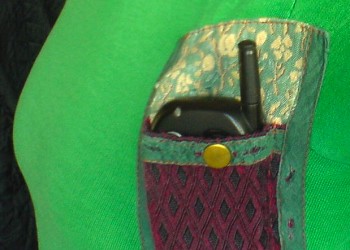
communicator pocket with the Bosch 739
|
In my case, the wrist became a vacant place since the mobile phone
can show the time. So what is more logical than mounting the phone on
the wrist? I have desired a wrist phone for long, and it's funny how I
completely missed it's actual introduction a few years ago. Being
rather disappointed by the general tendency of increasing phone sizes
(iPhone and Android phones) I had turned away from the mobile platform
hypes.
Now imagine that the watch phone concept will grow more mature and
shake off current implementation flaws, like being too big, too heavy,
too ugly, and clumsy to operate. With clever design, watch phones could
indeed be about the size of a regular watch. A phone screen need not be
large if the user interface is well
designed. We must not demand unrealistic capabilities, like full
internet
browsing. When made with strong synthetic materials, it need not be
heavy too. Well then, what would be so cool about a tiny, comfortable
and user friendly phone on the wrist? First of all, the phone is always
within reach at a known place. You can not miss a phone call, cause you
will always feel the vibra even if the ringtone gets lost in noise. And
in the case where you can not answer a call immediately, you can at
least quickly check who's calling. It
is not likely that you will loose the phone, so that is one thing less
to worry about. The phones will typically have music and organizer
functions, so you have several devices in one: at least a watch, a
phone, a music player, FM radio, a PDA. And you can bring all this
stuff with you no matter what clothes you wear, so you can use it
throughout the day during professional and leisure time activities. And
when wearing a conspicuous device is
not convenient in certain circumstances, you can always put the wrist
phone
in a purse or pocket after all.
For the watch phone to be a successful concept, it has to meet a few
important requirements, apart from being small, lightweight and
beautiful. Most important is the way how you can make phone calls. We
are now used to hold a device in the hand near to our ears, or use an
external handsfree device in certain situations. No one wants to wear a
headset all day long, so a watch phone must be able to work without it.
Though it is theoretically possible to hold your wrist next to your
ear, this is a very uncomfortable position. I'm not even talking about
the pathetic looks. When talking for more than a few seconds, you want
to take the phone off your wrist and use in regular handheld position,
or use a handsfree speakerphone in situations where we can't handle the
phone. Here lie the crucial bottlenecks in current implementations.
Hardly any model can be quickly detached from the strap. Moreover, it
turns out that handsfree over the built-in speaker is not powerful
enough to use it as such. In contrast with regular handheld
mobiles, there is actually only one speaker for handheld, handsfree and
music playback, driven at different amplification levels. At handsfree
level, the poor speaker is trying to perform beyond it's range, and
distortion is the result. Apart from unintelligible speak, this
introduces problems with echo cancellation. So here we have two major
aspects calling for attention: easy detachment and speakerphone. Both
aspects require space in a device which should be small as possible,
and this may be a reason why it is not properly implemented. Until the
day these problems are solved, watch phones can be no more than toys
for people who wear them as decoration, or for geeks who find their own
workarounds.
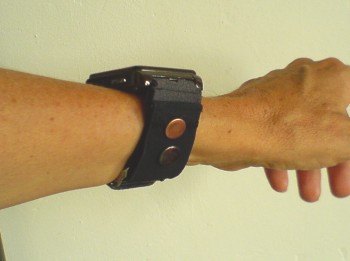
my S9120 with DIY quick lock strap
|